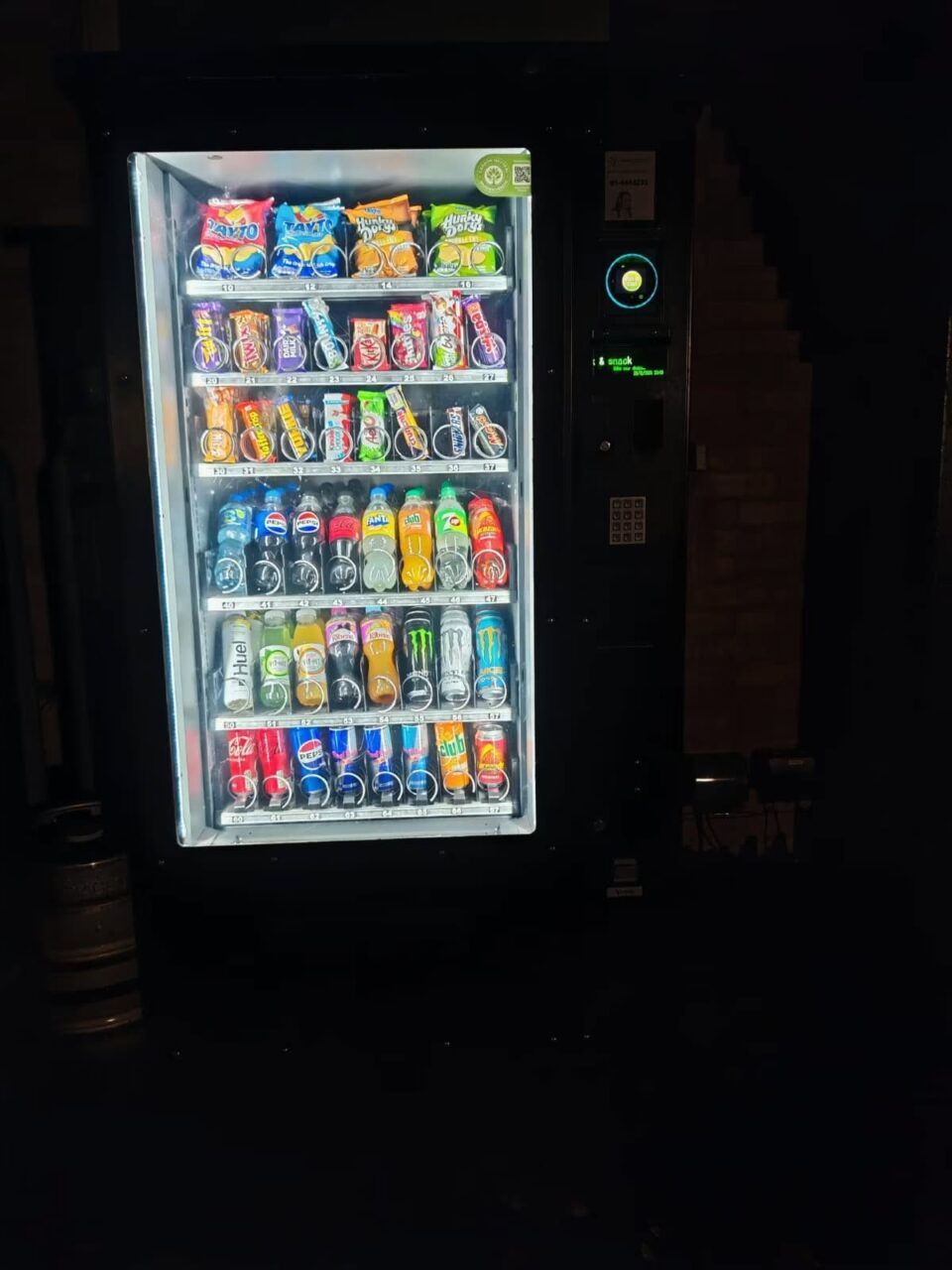
What are force vend and bill escrow on a vending machine?
Force vend and bill escrow describe two different cash-handling functions on some vending machines. Force vend can require a purchase after money is accepted. Bill escrow can hold an accepted banknote so it remains available for return, where the validator supports that feature. The exact behaviour depends on the machine and its settings, so neither term guarantees what an unfamiliar cabinet will do.
What force vend means
The Vendnet FLEX controller manual describes Force Vend as an option requiring a purchase after money is deposited. The same manual describes Bill Escrow separately as retaining the last accepted note for return on suitable equipment. These are model-specific examples, rather than universal rules for every cash-operated machine.
For a customer, the practical lesson is to choose a product before inserting money. Do not use a vending machine as a way to break a larger note unless the operator explicitly offers that facility. A machine that sells snacks is not automatically a change machine, even if it can normally return change after a completed sale.
What bill escrow does differently
Think of escrow as a possible temporary holding stage for a note. It is different from money already stored inside the validator. The equipment’s supported return behaviour matters, as do the controller settings. Ask the operator rather than assuming that pressing a return button will always deliver the same banknote you inserted.
Also keep banknote handling separate from coin handling. The word “escrow” in a manual does not establish that coins and notes follow identical paths. When reporting a problem, identify which form of cash you used. That small detail prevents the operator from trying to reproduce the wrong transaction during a service visit.
What should a customer do?
Read the accepted denominations and any payment instructions before starting. Check that your chosen selection is available and that you understand its displayed price. If you change your mind after inserting cash, follow the machine’s displayed cancellation instructions once. Do not keep adding money in the hope that this will release the first payment.
If the expected cash does not return, record the machine number, amount and approximate time. Explain whether you selected a product and whether anything was delivered. Contact the listed operator for assistance. Our guide to vending coin returns covers the customer reporting process without opening or shaking the cabinet.
What should a buyer ask during a demonstration?
Ask the supplier to demonstrate the intended cash journey on the exact configuration being offered. Watch what happens when cash is inserted, a product is selected and change is due. Also ask them to explain cancellation before a purchase. A verbal statement that the machine “takes cash” does not answer those separate questions.
Record the denominations supported and any restrictions. If the installation will also take cards, ask for a separate demonstration of that flow. Do not infer card cancellation or bank authorisation behaviour from the cash-return setting. The customer needs clear instructions for each payment method that is actually offered.
Keep the setup and customer message aligned
Only an authorised operator should change these settings using the correct service documentation. Agree the intended customer experience before changing a menu option. Afterwards, test that experience and check the signs beside the payment panel. An instruction that promises an unconditional return should not remain in place if the configured machine behaves differently.
For a new snack vending machine, include cash handling in the handover checklist. Keep the machine identifier and operator contact easy to find. Clear expectations and a working support route are more helpful to customers than unexplained technical terms on a cabinet.