
Micro-Market Barcode Will Not Scan: Ask for Help Without Substituting an Item
A snack that will not scan at a micro-market checkout can leave a customer wondering whether to try another barcode, choose a similar item on screen or leave money beside the till. Use the instructions for that particular checkout and ask the named support contact for help. Substituting another product in the transaction can leave the price and stock record referring to something different from the item you are taking.
Check the ordinary scanning process
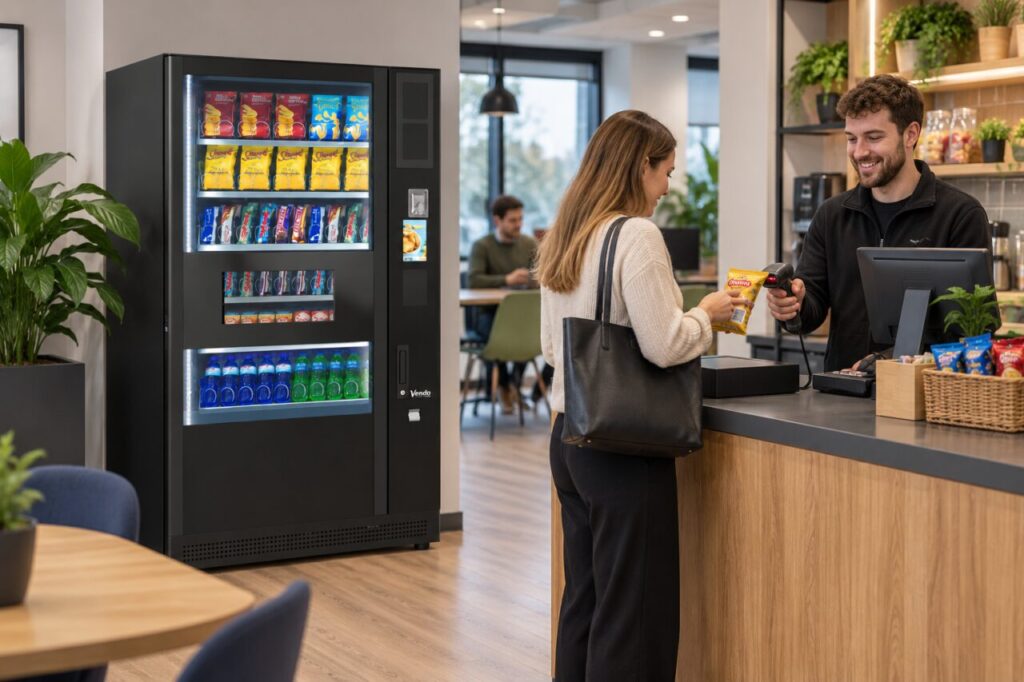
Present the product as directed by the checkout instructions, keeping the relevant barcode visible. Look for a clear confirmation that the intended item has been added before repeating the action. If the packaging is folded across the barcode, gently reposition the pack without opening or damaging it. Do not peel labels away or alter the product in an attempt to reveal a different code.
Some packages contain more than one printed code, but that does not mean each code is intended for customer checkout. Follow the installed system’s guidance or ask for assistance if the correct code is unclear. Avoid assuming that a phone camera’s ability to read a code proves the checkout should accept it. The useful observation is simply that this item has not been recognised through the normal customer process.
Do not substitute a similar product
Do not scan a neighbouring flavour or another pack from the same brand as a workaround. Its price, size or identity may differ, and the transaction would describe the wrong item. The same applies to selecting a vaguely similar product from an on-screen list without confirmation that it is the correct entry. Ask the authorised contact how to complete or abandon the purchase accurately.
If an item has already appeared in the basket, check its description and quantity before scanning again. Repeated attempts can be confusing when the customer has not noticed the first confirmation. Use only the documented correction process if an unwanted duplicate appears. Do not assume that removing a physical pack from your hand removes it from the checkout basket or cancels a payment already attempted.
Give support the exact product details
Explain the product name, flavour, pack size and the visible checkout response. Keep the item available for the host to identify. A photograph of the pack and relevant code may help if requested through the agreed support channel. Avoid including other customers or payment details in the image. State whether the problem happened before payment or after an attempted payment, because those are different stages to investigate.
For hosts, retain the actual item identity when passing the report to the operator. A note saying “chocolate bar would not scan” may be insufficient where several similar bars are stocked. Do not create an informal price or instruct staff to use a different barcode. The person responsible for the product record should check the issue and confirm the correct customer process before a workaround becomes an unofficial routine.
Close the incident clearly
If the purchase cannot be completed, follow the site’s instruction for returning the item or choosing an alternative. Do not leave it in an unsuitable location or take it on the assumption that payment can be sorted out later. Where money appears to have been taken, preserve the transaction details and use the stated support route. Avoid promising a particular refund time without confirmation from the responsible parties.
Businesses comparing micro markets and traditional vending should ask how unrecognised products are reported and corrected. A clear help route is part of the everyday customer experience, particularly when no cashier is present. Review repeated scan problems with the operator using exact product records so the cause can be investigated rather than hidden by customers repeatedly selecting substitute items.
Contact our team to discuss workplace refreshment options.
Related guidance: Micro-Market Receipts: Report an Item Mismatch with Useful Details.