
Need a Vending Machine Receipt? What to Check Before You Leave
If you need a vending machine receipt for an expense claim or a purchase query, take a moment before leaving the machine. The available receipt options depend on the payment terminal and its configuration. Some installations offer a digital receipt immediately; others require you to contact the operator.
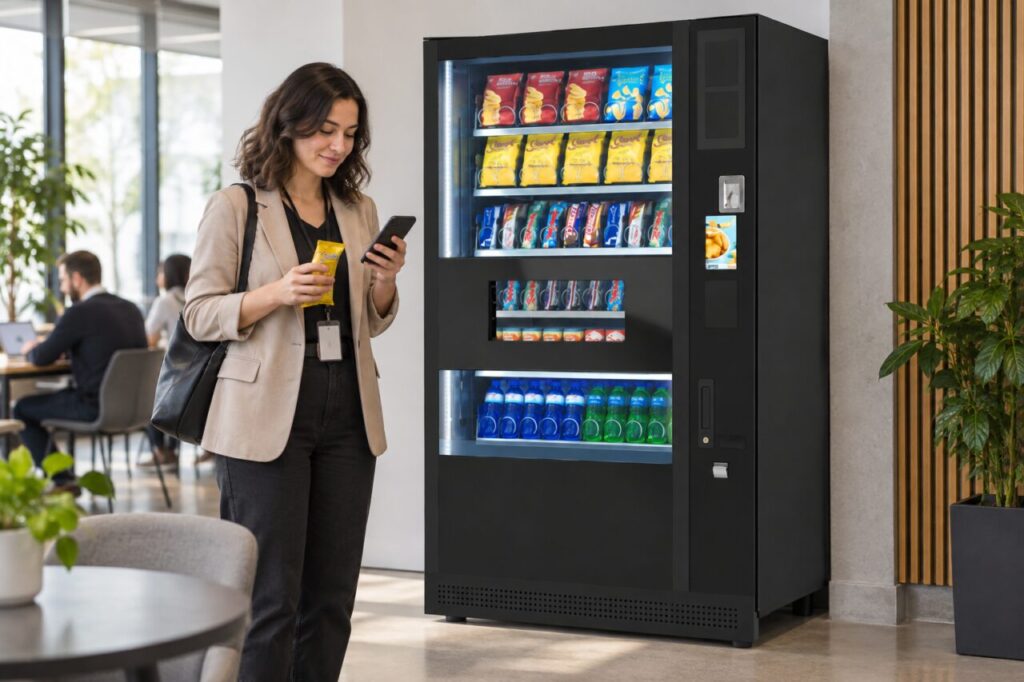
Look at the terminal after payment
Once the transaction finishes, check the screen for a receipt option. Nayax describes a receipt prompt followed by a QR code on supported VPOS Touch and Onyx devices. Scanning that code lets the customer obtain a digital receipt.
Follow the instructions on the actual terminal. A machine accepting contactless payments does not, by itself, prove that the same receipt feature is enabled. Avoid starting another purchase simply to try to bring the previous screen back.
Save the receipt before you walk away
If a receipt opens on your phone, save it somewhere you can find later. Check that it relates to the transaction you just made. A screenshot of the machine is useful context, but it does not replace the transaction record.
For work expenses, keep the receipt with your usual expense notes. Ask your organisation what information it needs rather than assuming a banking notification will be sufficient. This prevents a second visit to collect details you could have recorded at the time.
Record enough information for the operator
When there is no receipt option, note the site, machine identification, purchase date, approximate time, amount and selected product. Use the support contact displayed on the machine. The building’s reception may help identify the operator, but it may not hold the payment records.
Explain whether you want a copy of a purchase record or help with an unsuccessful vend. Those are different queries. Send only the transaction information requested through the operator’s official support channel; never send a full card number or security code.
Check which payment method you used
A physical card, phone wallet and watch can leave different identifiers in payment records. If you used Apple Pay, our guide to Apple Pay card digits in vending queries explains why the visible digits may differ.
For the terminal-specific receipt process, see Nayax’s digital receipt instructions. Operators can make the process easier by testing the installed receipt feature and including clear customer support details on the machine.