
A Micro-Market Barcode Scans as a Different Product: Stop and Check the Item
If a micro-market checkout identifies your snack as a different product, pause before paying. A successful scan sound does not establish that the displayed item is correct. Compare the product name, size and quantity with what you are holding, then use the market’s help process if they do not match. Do not substitute another product’s barcode simply because its price looks similar.
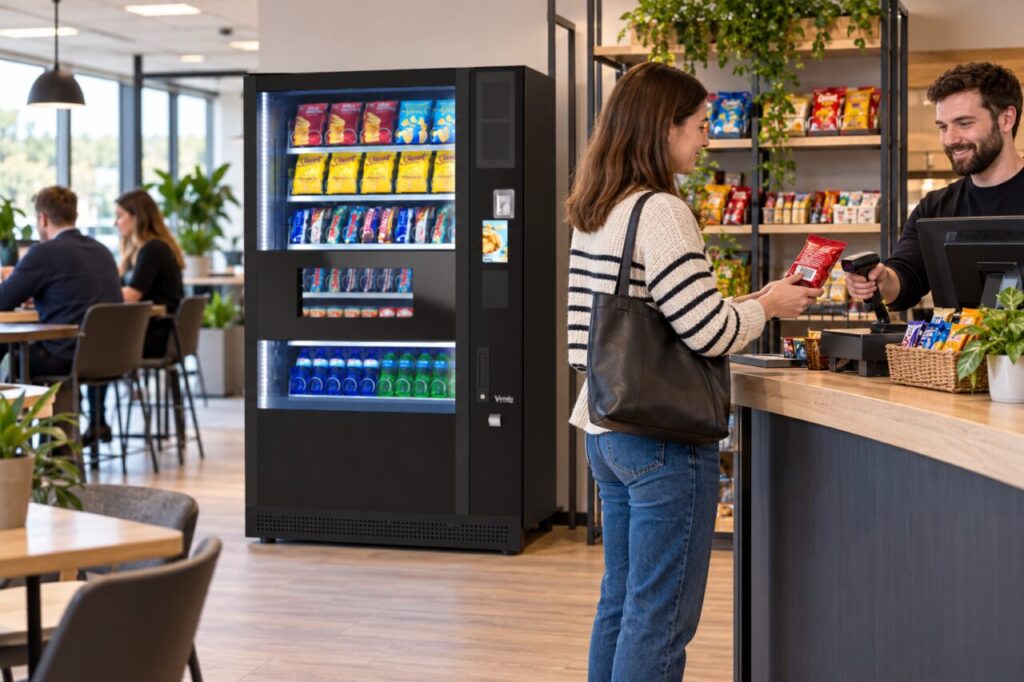
Check the complete displayed item
Read the checkout description rather than relying on the first word or product image. Some descriptions are shortened, so a different abbreviation alone may not prove a mismatch. Check the flavour, size and price where displayed. If the product is genuinely different or the description is too unclear to confirm, ask for help before completing the purchase.
Keep the pack in your basket or hand so that it can be identified. Do not remove a label or try to alter the barcode. If several barcodes are printed on the packaging, follow the site’s instructions or ask the support contact which one is intended. Repeatedly scanning different codes can make the basket harder to understand.
Keep the basket accurate
Review whether the scan added one item or more than one. Use only the normal correction controls provided by the checkout and follow the displayed instructions. If you cannot confidently remove an incorrect entry, ask for assistance. Do not assume that leaving the screen or walking away automatically cancels an unfinished basket for the next customer.
Where vending and a micro-market share a room, keep the purchase routes separate. A nearby vending selection number is not a substitute for a market barcode. The micro-market and vending overview provides context for the two formats, but the actual checkout instructions at your site govern the immediate purchase process.
Give support a useful report
Record the market location, checkout identifier if visible, time and the product’s full name. Explain what the checkout displayed instead. A photograph of the product and relevant screen area can help, provided it does not include another customer’s information. Keep the barcode visible in a product photograph where practical so the operator can identify the exact pack.
Say whether payment was completed. If it was, retain the receipt or transaction reference and describe the mismatch as a completed purchase query. If it was not, explain the state in which you left the basket and follow the help instructions. This distinction helps support decide whether to investigate the product record, the transaction or both.
Let the operator correct the mapping
The operator should check the product information and checkout arrangement through its authorised process. Customers should not attempt to edit product records, use another item’s code or accept a guessed price as a permanent workaround. If you are the site host, pass on the exact report and ask what temporary customer guidance is appropriate for the affected item.
Once the operator confirms the correction, check that any temporary notice is updated. If the same problem appears again, report the new occurrence with the earlier reference rather than assuming it is already being investigated. Accurate product identification protects the usefulness of receipts and stock records as well as the immediate purchase. The right response is a clear pause and a precise report, not a trial-and-error checkout.
Related guidance: Micro-Market Barcode Will Not Scan: Ask for Help Without Substituting an Item.
Planning vending at your site? Contact the team with your location, equipment details and requirements.