
What is the MDB code in a Nayax product map?
A Nayax product map links a selection on your machine to the product you expect to sell there. The MDB code identifies a bin or channel in the machine controller. There is no single number you can enter for every machine. If a snack sells successfully but the wrong line falls in your stock report, checking that link is a better starting point than ordering more stock from the report alone.
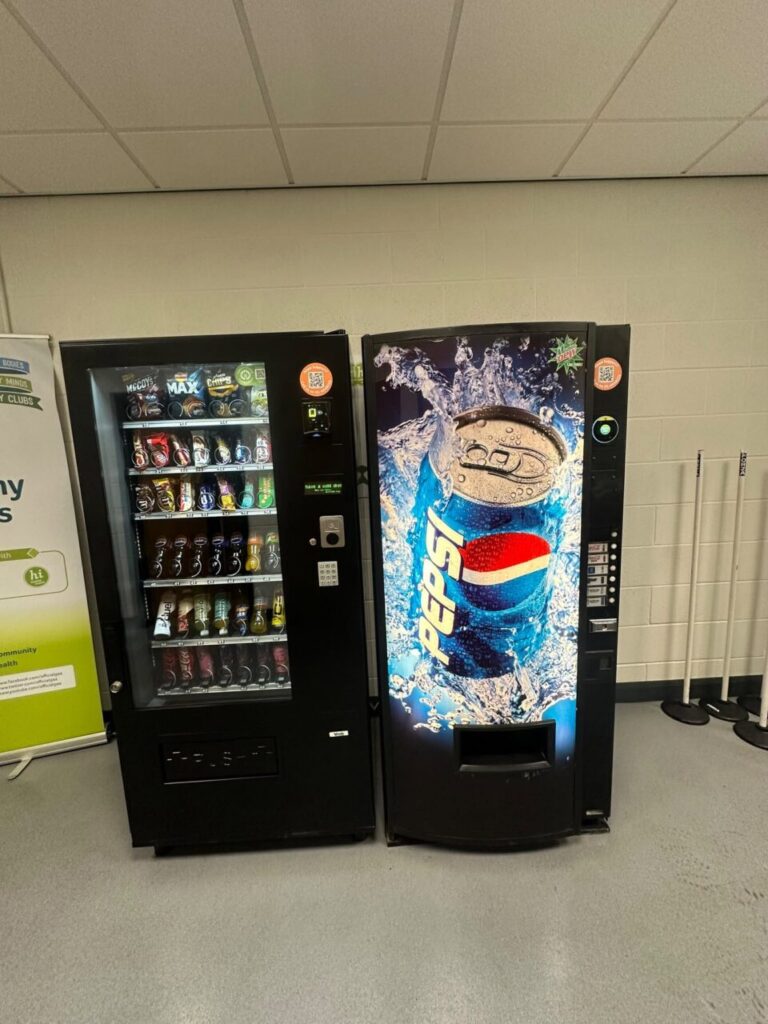
Three things to identify at the cabinet
Write down the product in the row, the selection the customer enters and the machine identifier. A customer might press a letter and number printed beside a product. Nayax calls this customer-facing selection the PA code. The numeric MDB code comes from the controller. A slot label that happens to be a number can still represent a different field from the internal code.
Take a simple example. A packet of crisps is in the row marked B4. Record B4 exactly as it appears on the cabinet, along with the product and pack size. Look up the corresponding internal code for that particular row using the machine documentation or a verified transaction. Guessing that the internal code must be four because the label ends in four can send the stock movement to a different line.
Build a record that someone else can check
Use one line per selection in your working sheet. Include the site, cabinet identifier, visible selection, product and internal code. Leave an unverified field blank until the operator can check it. Keep a separate column for capacity. Capacity tells you how many items the row holds, while the stock count tells you how many items are there now. An empty row can still have a positive capacity.
Use the Nayax product map field guide when comparing the sheet with the system. If the same pack occupies two rows, keep both rows in the record. A single product name in the catalogue does not tell you which row was used in an individual sale. Photographing the selection labels can help the next operator understand the layout after a refill.
Follow a single test sale
Ask the authorised operator to make a purchase from a known row. Note the time, button pressed, amount paid and item delivered. Find the corresponding transaction for that machine, then compare the reported item and the change in recorded stock. Nayax describes how to pair a purchase with its reported code in its mapping and troubleshooting guidance.
If the customer got the correct item but the wrong product appears in the report, investigate the mapping before changing physical stock. If a different item actually fell, inspect the product loaded into the row and ask the technician to review the selection behaviour. These observations point to different work. Matching the euro amount alone can miss the error when both products have the same price.
Protect the record during a range change
When replacing a product, record which item left the row and when the new one entered. Check the physical label, displayed price and system product together. Repeat a test purchase if the map has changed. A refill team working from yesterday’s report otherwise has little way to know whether the remaining units belong to the old product or its replacement.
Our introduction to MDB covers equipment compatibility. For help with a workplace machine, send the cabinet identifier and a description of the sale.