
Vending Product Photos: Check That the Display Still Matches the Pack
A product photograph can remain on a vending display long after the supplier changes the packaging. Sometimes the difference is cosmetic; sometimes the new pack represents a different size, flavour or product. Check the image against the actual saleable item before assuming the change is harmless. Customers should be able to connect the selection information with what they will receive without guessing.
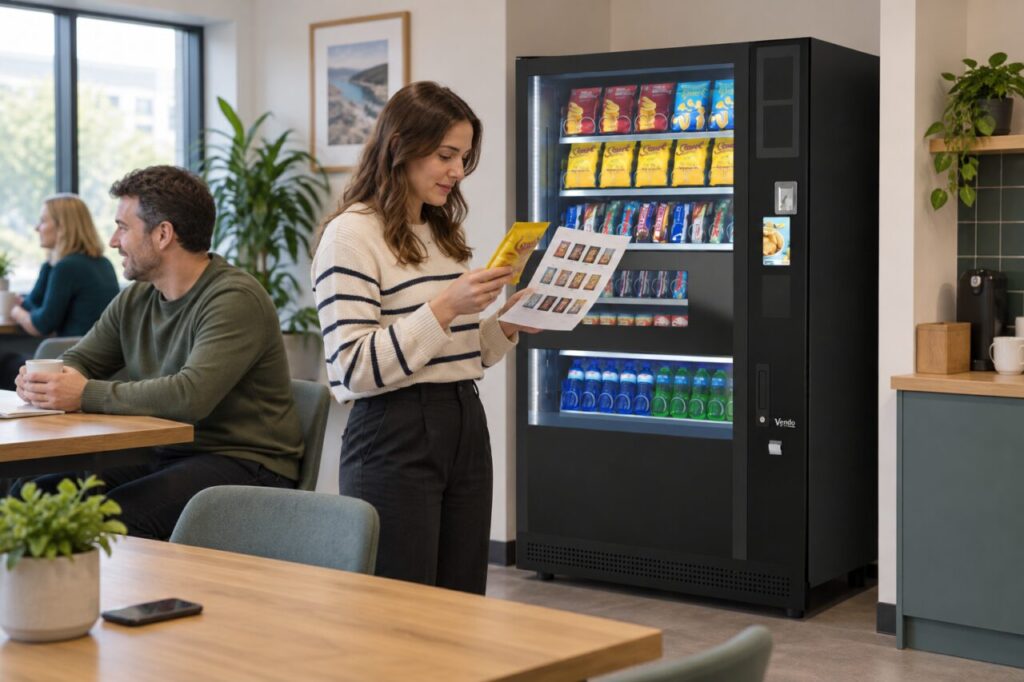
Identify the exact product first
Compare the product name, flavour and pack format, using the current supplied item and the operator’s approved range record. Do not decide from colour alone. Brands may use similar designs across several products, and a redesigned pack can look unfamiliar even when the product name is unchanged. Ask the responsible supplier to clarify any uncertainty before updating the customer display.
Keep this review separate from equipment suitability. If the pack dimensions or material have changed, the operator should check whether the new item is appropriate for the machine’s configuration. The vending equipment team can discuss the proposed range and relevant checks. A photograph that looks correct does not demonstrate that an unfamiliar pack will dispense reliably.
Review where the image appears
Check the machine display, any printed selection sheet and relevant workplace communications. Updating one photograph while leaving an old product name elsewhere can create a different inconsistency. Identify who controls each item so the change can be coordinated. The site host should not edit equipment settings or product information beyond the responsibilities agreed with the operator.
Use an accurate, authorised image of the product being sold. Avoid copying an attractive image of a larger pack or another flavour because the exact photograph is inconvenient to obtain. Where an image cannot immediately be updated, ask the operator for a clear and appropriate interim approach. Do not leave customers to discover the difference only after completing a purchase.
Separate appearance from product information
An image can help recognition, but it should not be treated as a complete source of ingredients or dietary information. Where such information is required or requested, use the responsible supplier’s current, accurate product information through the agreed process. Do not infer suitability from a familiar colour, an old pack photograph or an informal description supplied by another customer.
Similarly, do not assume that a packaging redesign means the contents have changed. Record what has actually been confirmed and what remains uncertain. This keeps staff from offering unsupported explanations. A short factual statement that the operator is checking the product information is more useful than confidently reassuring a customer about details that nobody has verified.
Check the final selection as a whole
After the update, compare the image with the product name, selection identifier and actual stock position. Ask an uninvolved colleague which item they would expect from that selection. This can reveal a misplaced photograph or a name copied to the wrong position. Check the visible information at the machine rather than relying only on the file prepared in the office.
Keep the updated image and product record together so the next refill does not reintroduce an older version. If two packaging designs are temporarily in stock, agree how to describe that situation accurately without suggesting that two different products are interchangeable. A controlled image review is a small task, but it helps preserve a clear purchase journey as the product range evolves.
Contact the team to discuss a range or equipment change.
Related guidance: Vending Selection Numbers: Help Customers Match the Code to the Product.