
Vending Selection Codes Look Similar: Check Zero, Letters and the Display
A selection label can be easy to misread when you are choosing quickly. A zero may resemble a letter, a faded character may be unclear, or the code beside one product may appear to belong to the neighbouring selection. Before paying, compare the label with the machine’s displayed choice and price. If the information remains ambiguous, ask the operator rather than trying several combinations.
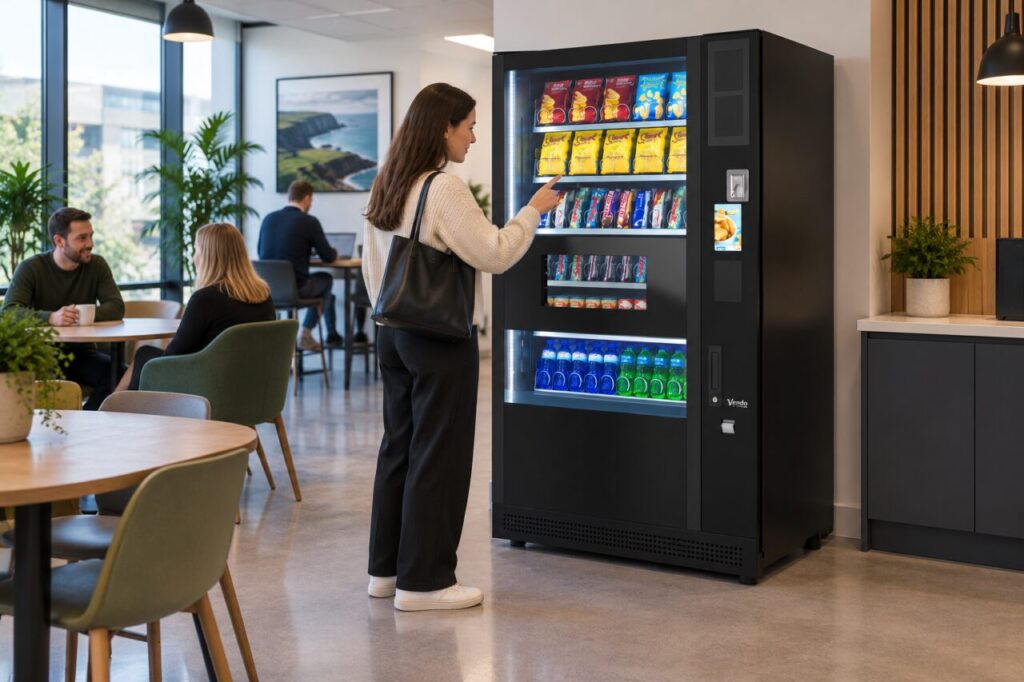
Follow the instructions on that machine
Vending interfaces differ. Some use numbered selections, some combine letters and numbers, and others show products on a touchscreen. Do not assume a code you used at another machine will select the same item here. Start with the instructions and labels on the equipment in front of you, then check any confirmation shown before completing the purchase.
Look at the label’s position as well as the character itself. A snack can sit close to the edge of a tray, making the neighbouring label seem plausible. Step back enough to see the complete row without touching the glass or blocking another customer. If a label has slipped or become unreadable, report that specific issue so it can be corrected at the next authorised visit.
Avoid using guesses as a test
Entering different codes may select a different product rather than produce an error. If the screen shows an unexpected item or price, use only the cancellation or correction method described on the machine. Do not continue into payment hoping the intended choice will become clear later. If the interface does not make the next step obvious, pause and seek help.
Never follow online claims about secret combinations or service menus to resolve a customer selection problem. Our guide to vending machine codes is a useful starting point for separating normal selection information from misleading claims. Customer use should remain within the displayed purchase process; technical settings belong to authorised operators and support staff.
Make a useful report
Tell the host or operator which machine you used, where it is and which row or product caused the difficulty. Describe the uncertain character in words, such as whether it appeared to be zero or a letter. A clear photograph of the public selection label can help, provided it does not include another customer’s payment details or unnecessary personal information.
If you already bought the wrong item, keep the purchase time, amount, payment method and product received. Explain that the label was unclear without assuming the machine deliberately changed your choice. The operator needs to compare the selection information and transaction record. Do not force the collection opening, put the product back into the machine or attempt another purchase merely to reproduce the problem.
Improve the labels at the next service visit
For a business planning vending equipment, legibility belongs in the customer-use demonstration. Ask representative users to find a product and identify its selection without coaching. Include the actual lighting and normal viewing distance when checking the installed machine. A label that looks clear on a desk may be less useful behind reflective glass.
Operators should check labels after changes to the product layout and keep the displayed information consistent with the configured selections. Replace damaged labels through the approved process and test the affected choice. Record the correction so the next person handling a complaint knows what changed. Clear identification reduces avoidable confusion without requiring customers to understand the machine’s technical controls.
Related guidance: Peeling Vending Labels: Keep Selection Information Clear.
Planning or reviewing vending at your site? Contact the team with your location, equipment details and the question you would like to resolve.